


Hubble Connected for Motorola
3.75.15K Reviews
App Specs
- Version
- 6.5.70
- Updated On
- License
- Free
- Downloads
- 1,000,000+
- Developer
- Hubble Connected
- Categories
- Parenting
- Platform
- Android, iOS
Screenshots
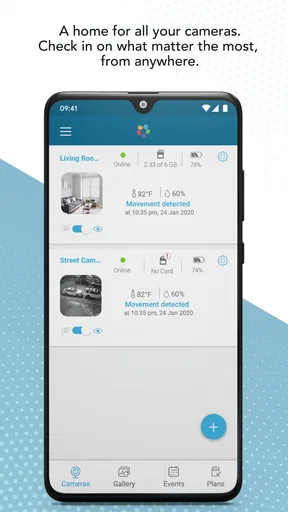
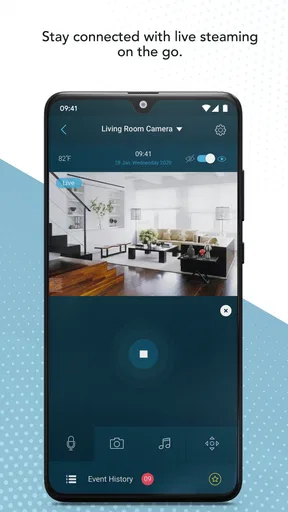
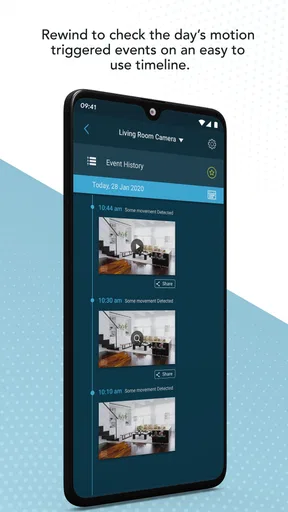
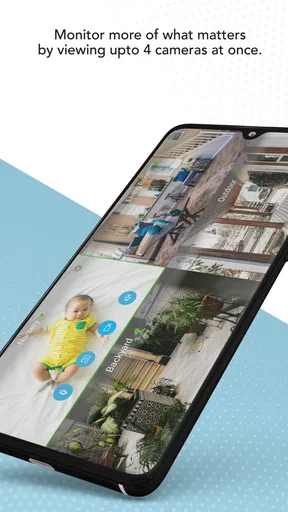
 Analysis by AppCompare
I judge a home-monitoring app by what it asks me to trust, not just by how convenient a camera feed looks. Hubble Connected for Motorola puts a phone between you and a camera in a private room, so I would treat setup as a small household decision: choose who needs access, think about when you want monitoring active, and make sure everyone who uses the camera understands its role. That matters as much as a clear picture, especially when the camera is watching a baby’s room or another personal space.
Trust starts with a clear household plan
Hubble Connected is a parenting app from Hubble Connected, although its monitoring use can also extend to pets or rooms at home. That broader use is handy, but it can blur boundaries if a camera is casually moved from a nursery to a shared living area. I’d decide on a specific purpose and location before pairing a device, then tell other household members what is being monitored and who can view it. A camera app can help you check in; it cannot replace an agreed household routine or a caregiver’s direct attention.
The app is free to install, while in-app purchases range from $5.99 to $149.00 per item. I would check the purchase details in the app before relying on any paid option, particularly if cloud recording is part of the plan. The app’s average rating is 3.8 from around 26,000 ratings, which suggests a mixed reception rather than a universally smooth experience. I’d take that as a reason to test the exact camera and phone combination I intend to use instead of assuming every setup will behave the same way.
What I can and cannot verify about privacy
Privacy claims deserve careful wording. The published review describes encryption for video streams and account information, but that alone does not answer every question a privacy-minded parent might have. Encryption is one useful safeguard; it does not tell me who can access an account, how long recordings remain available, or what options exist for deleting stored material. I would look for the app’s current privacy information and account controls before switching on recording, and I would avoid treating a live view as automatically private simply because it is inside a family home.
There is a practical distinction between watching a live feed and saving footage. A live check may be enough when I only want to see whether a child has settled. Recording can be useful when I need to revisit a specific moment, but it also creates more material to manage. If I enable storage, I would first learn how to find and remove clips and who in the household can reach them. If those choices are unclear in the version I’m using, I would keep the workflow limited to live monitoring rather than assume the defaults match my preferences.
Small choices that make monitoring safer and calmer
I’d use a dedicated, strong password for the account and keep access limited to the people who genuinely need it. If another caregiver needs to check in, I would agree on whether they should use their own access or view the feed with me, rather than sharing credentials without thinking it through. I’d also review who still needs access after a temporary arrangement ends. These are ordinary account habits, but they matter more when a phone can reveal what is happening inside the home.
Notifications can be helpful, yet they are not a substitute for checking the camera directly when something matters. Sound and motion alerts may draw attention to activity, but a notification can be missed, delayed by a phone’s settings, or triggered by ordinary movement. I would treat alerts as prompts, not guarantees. For a baby’s sleep routine, for instance, I’d keep the phone’s notification settings in mind and avoid turning every alert into a reason to repeatedly interrupt a quiet period.
Worth Reading Before You Choose

Flipboard Shows What News Apps Must Do Beyond the Feed

Switching to Android Auto Means Rethinking Your Driving Routine

Google Calendar Makes a Crowded Week Easier to Manage

Ludo King Makes the Most of the Minutes Between Plans

Baby Panda World Brings Quick Play to Modern Phones, but Its Game Library Feels Busy

ESPN’s Live Game View Makes Following Close Games Easier
Getting Started with Hubble Connected
When I first downloaded Hubble Connected for Motorola, I was a bit wary. There are so many apps out there promising the world, but only a few deliver. Setting it up was surprisingly straightforward. I simply downloaded it from the app store, created an account, and paired it with my Motorola camera. Easy peasy!
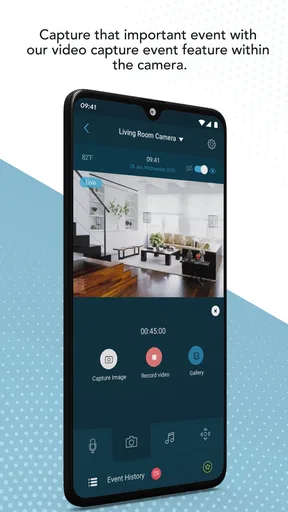
The interface is user-friendly, even for someone like me who isn’t exactly tech-savvy. Navigating through the features felt intuitive, and within minutes, I had a live feed of my living room on my phone. The app supports multiple cameras, so if you’re like me and have a couple of areas you want to keep track of, you’re in luck.
Features That Stand Out
One of the first things that caught my attention was the two-way audio. This is a game-changer! Whether you want to sing a lullaby to your baby or hush your dog who’s barking at the mailman, this feature is incredibly handy.
The night vision mode is another feature that’s worth mentioning. It offers a crystal-clear view even in the dark, which is perfect for checking in on your baby during nighttime without disturbing their sleep.
Hubble Connected also provides sound and motion alerts. Anytime there’s a movement or a sound above a certain decibel level, you get an instant notification. This really gives peace of mind, knowing you’ll be alerted if anything unusual happens.
Performance and Reliability
In terms of performance, the app does what it promises. The video stream is mostly smooth, with only the occasional lag when my internet connection dips. This isn’t a deal-breaker for me, but it’s something to keep in mind if you don’t have a strong Wi-Fi connection.
The alerts are timely, which is crucial for an app of this nature. I found the notifications to be prompt and accurate, allowing me to respond quickly if needed.
One minor hiccup I encountered was with the app occasionally logging me out. It’s not frequent enough to be a major issue, but it’s something I hope gets ironed out in future updates.
Security and Privacy
Given that this app connects to cameras inside your home, security is a top concern. I was relieved to learn that Hubble Connected for Motorola employs encryption to protect video streams and account information. It’s reassuring to know that my privacy is taken seriously.
There’s also an option to record and store footage in the cloud, which can be accessed anytime. This is particularly useful if you want to review any incidents or simply keep adorable videos of your little one.
Choosing it over a simpler monitor
The useful comparison is not just with other camera apps; it is with a traditional audio baby monitor and with checking a camera on its own screen. An audio monitor is simpler when all I need is to hear a child, and it avoids the temptation to keep opening a video feed. A camera app is more useful when seeing the room matters, when I want to speak through two-way audio, or when I need to keep tabs on more than one camera from my phone. That flexibility comes with more dependence on the phone, account, internet connection, and notification settings.
For a parent who already owns a compatible Motorola camera, using its companion app is a more natural route than juggling an unrelated camera viewer. But if you have not chosen hardware yet, I would compare the camera ecosystem and the app together rather than choose software first. A different system may be a better fit if its account controls, recording choices, or compatibility suit your household more clearly. The decisive question is not which app has the longest feature list; it is whether the camera and access model match the way your family actually wants to monitor.
A routine that avoids needless checking
One realistic use is a parent preparing dinner while a baby naps in another room. I would keep the camera in a stable position, check the live view when needed, and use audio only if there is a reason to soothe the child remotely. Motion alerts might be useful as a nudge, but I would not interpret every movement as a problem. That approach makes the phone a helpful glance rather than a constant stream of interruptions.
With multiple cameras, naming or mentally organizing locations matters more than it first seems. Before relying on a feed in a hurry, I’d confirm which view corresponds to which room and avoid moving cameras without updating my own routine. This is a small practical safeguard: when a notification arrives, I want to know what I’m looking at without opening several feeds or guessing. It also helps prevent checking the wrong room when time is tight.
Two-way audio has a trade-off that is easy to overlook. It lets me speak into a room, but a voice through a camera may startle a child or confuse a pet if it comes without context. I’d try it while nearby first, learn how the sound comes across, and use it selectively. For routine reassurance, a quick visual check may be less disruptive than speaking through the device.
Who will appreciate it, and who may prefer another option
I can see this app suiting caregivers who already use a Motorola camera and want phone-based viewing, night vision, alerts, and the ability to talk through the device. It is also convenient for a household that wants to check different camera areas without keeping a dedicated monitor in hand. The app is free to download, is rated for Everyone, and supports Android devices running version 5.0 or later; the current version is 6.5.68. It has passed one million installs, but that reach does not guarantee that every camera setup or home network will feel equally dependable.
I would be more cautious if reliable monitoring is essential in a place with weak or inconsistent Wi-Fi, since the live stream can lag when the connection dips. A dedicated monitor may be a better primary option if you want a purpose-built screen and do not want to depend on a phone being available, charged, and configured to surface alerts. Likewise, someone who is uncomfortable creating an account or managing camera access may prefer a simpler setup with fewer connected features.
The app’s age rating and broad availability do not make a camera suitable for every room or every person. I’d use it only where monitoring is appropriate, keep the camera pointed at the intended area, and be thoughtful about visitors and other people in the home. A practical test is to ask whether the same view would feel acceptable if everyone who lives or works in the home knew exactly when and why it was being used. If not, I would change the placement or choose another way to keep watch.
Final Thoughts
In conclusion, Hubble Connected for Motorola is a robust and reliable app for anyone looking to monitor their home, baby, or pets. It’s packed with features that make remote monitoring a breeze. While there are minor areas for improvement, the app’s overall performance and ease of use make it a solid choice.
If you’re in the market for a dependable monitoring solution, I’d recommend giving this app a try. It offers a great balance of functionality and peace of mind, making it a worthwhile download on your Android or iOS device.
My recommendation comes with a practical condition: test it during an ordinary day before making it part of an important sleep or caregiving routine. Check whether the feed remains usable in the rooms that matter, whether alerts reach the phone as expected, and whether the people who need access can use the account comfortably. If those basics fit your household, the combination of viewing, audio, and more than one camera can be genuinely useful. If they do not, a simpler monitor may offer more confidence with less setup.
Pros
- User-friendly interface for easy navigation.
- Real-time notifications for quick alerts.
- Integrates seamlessly with Motorola devices.
- Offers cloud storage for video recordings.
- Supports multiple camera connections.
Cons
- Subscription required for premium features.
- Occasional connectivity issues reported.
- Limited compatibility with non-Motorola devices.
- In-app ads can be distracting.
- Setup process can be time-consuming.
FAQs for Hubble Connected for Motorola
What features does Hubble Connected for Motorola offer?
Hubble Connected for Motorola offers a range of features including live video streaming, two-way audio communication, motion and sound detection alerts, and room temperature monitoring. The app also provides cloud video recording, allowing users to review past footage. It’s designed to work seamlessly with Motorola baby monitors, security cameras, and other smart devices.
Is Hubble Connected for Motorola compatible with all Motorola devices?
Hubble Connected for Motorola is specifically designed to work with a variety of Motorola smart devices, including baby monitors and security cameras. However, it’s essential to check compatibility with your specific device model before downloading. The app is regularly updated to support the latest devices and features, ensuring optimal performance.
What are the subscription options for Hubble Connected?
Hubble Connected offers both free and premium subscription plans. The free version includes basic features like live streaming and alerts. Premium plans unlock additional features such as extended video storage, advanced analytics, and personalized alerts. Subscription details, including pricing and features, can be accessed within the app.
How secure is the Hubble Connected app?
Security is a top priority for Hubble Connected. The app uses end-to-end encryption to protect video streams and personal data. Users can set up passwords and two-factor authentication for additional security layers. Regular updates also ensure that any vulnerabilities are quickly addressed, keeping user data safe and secure.
Can I use Hubble Connected on multiple devices simultaneously?
Yes, Hubble Connected supports multi-device access, allowing multiple users to view and manage the same camera or monitor simultaneously. This is particularly useful for families or households where multiple people need access. The app’s interface ensures a seamless experience across different devices, whether Android or iOS.


